getting started
Two windows. ~30 minutes.
Single binary. ~10 min collecting credentials, ~20 min watching the ladder run. Resumable.
Have an AI agent?
Hand the install to your agent
Already using Claude Code, Codex CLI, or Gemini CLI? Paste the prompt below. The agent walks the trail end-to-end: pre-flighting every credential, monitoring the TUI, verifying the cockpit at the end.
Paste into your agent's session
curl -fsSL https://kartaa.pages.dev/getting-started/agent-playbook.md \
  -o /tmp/kartaa-agent-playbook.md \
&& echo "Read /tmp/kartaa-agent-playbook.md and walk it end-to-end. Don't tell me to launch kartaa-install until every gate is green. Monitor the TUI in a side terminal. Verify the cockpit when it exits."
Two-line bootstrap. Playbook source: agent-playbook.md. Works for AWS EC2 and Hetzner host modes today; bring-your-own VPS is planned.
-
Step 1 of 5: Host-mode pre-flight
Pick one — agent runs only the matching gates.
AWS EC2
STS identity, default VPC + subnet, vCPU quota (L-1216C47A), Free-Tier eligibility, key pair imported, no stale instance, plus a RunInstances dry-run that proves IAM perms can actually launch.
Hetzner Cloud
API token (Read & Write) probed, server type available in chosen location, SSH pubkey staged.
Bring-your-own VPS planned
Not yet wired up, currently disabled in the TUI. The playbook keeps the BYO gate stub for forward-compat; the agent skips it until the TUI's
byomode ships. -
Step 2 of 5: Tailscale
Two keys + two admin toggles. Both keys ≥ 7-day TTL.
- Auth key — generate at admin/settings/keys: Reusable ON, Ephemeral OFF, ACL tag set (whitelisted in your tailnet policy file).
- API token — same admin page, different section. Used to sweep stale ghost nodes if hostnames collide on a re-run.
-
MagicDNS
ON and HTTPS Certificates
ON at admin/dns.
Required for
tailscale serveto issue the cockpit's HTTPS cert. -
Hostname not already on the tailnet (agent runs
digand asks you to delete the ghost at admin/machines if it resolves).
-
Step 3 of 5: Codex
No keys to paste — just confirm subscription + flow.
- Active ChatGPT Plus or Pro subscription. Kartā uses your subscription's Codex quota (no API billing).
-
The TUI runs
codex login --device-authand prints a code. You open chatgpt.com/codex/auth/link on any signed-in device, paste the code, approve. ~30 s.
-
Step 4 of 5: Telegram optional
Skip if you don't want push notifications.
-
Bot token from @BotFather
(
/newbot). - chat_id from @userinfobot.
-
Smoke: agent sends a test message via
Bot API
sendMessage; you must/startthe bot first so it's allowed to DM you.
-
Bot token from @BotFather
(
-
Step 5 of 5: Launch · monitor · verify
Agent green-lights, you press Enter, agent watches.
-
Agent says READY TO LAUNCH only when every
gate above is green. On any
FAIL, it names the specific credential to fix and the page to fix it on. -
You launch
kartaa-install; the agent tails the newest run's~/.config/kartaa-install/runs/<run>/state.toml+ the host-mode resource panel in a second terminal. -
Post-flight: agent curls the cockpit URL, verifies tailnet
membership, optionally runs
kartaa-doctor.shon the host. You're handed back a green check.
-
Agent says READY TO LAUNCH only when every
gate above is green. On any
READY TO LAUNCH appears in your agent's chat only when every gate above is green.
Step 1 of 4
Get the installer
macOS only for now — the installer runs on your Mac, the host is
Linux. SHA-256 receipts for every asset are in
/version.json (the checksums map);
install.sh verifies them automatically.
Or one line in a terminal
curl -fsSL https://kartaa.pages.dev/install.sh | bash
Drops to ~/.local/bin/kartaa-install. Source:
/install.sh.
Step 2 of 4
If you clicked the card instead
Browser downloads pick up macOS's quarantine flag. Two commands clear it:
xattr -d com.apple.quarantine ~/Downloads/kartaa-install-*
chmod +x ~/Downloads/kartaa-install-*
~/Downloads/kartaa-install-*
Step 3 of 4
Pick a path
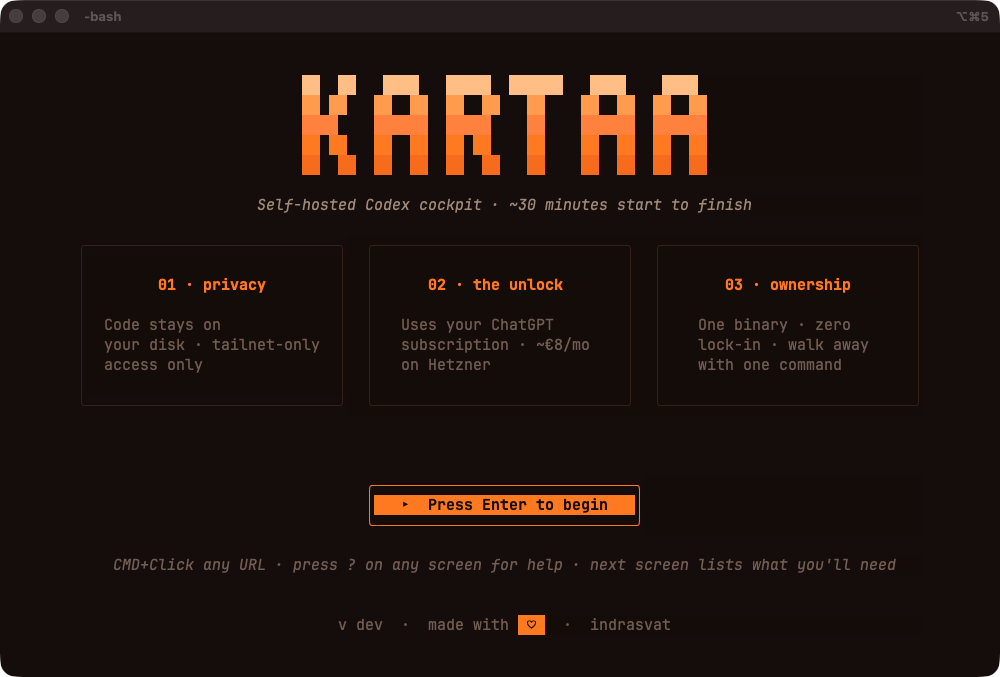
First install
Enter — host pick, prereqs, plan input,
~20-min provisioning ladder.
Re-running
r — jumps straight to the post-install ladder
of the last successful install.
Step 4 of 4
Wire it up
Four rows on the Done screen. One keypress each.
-
[c]
Codex device-auth
Runs
codex login --device-authon the host. Sign in to ChatGPT. -
[g]
GitHub App
Pick a name, two clicks in the manifest splash. Callbacks come back automatically.
-
[T]
Telegram
Paste a bot token (@BotFather) + chat_id (@userinfobot). Optional.
-
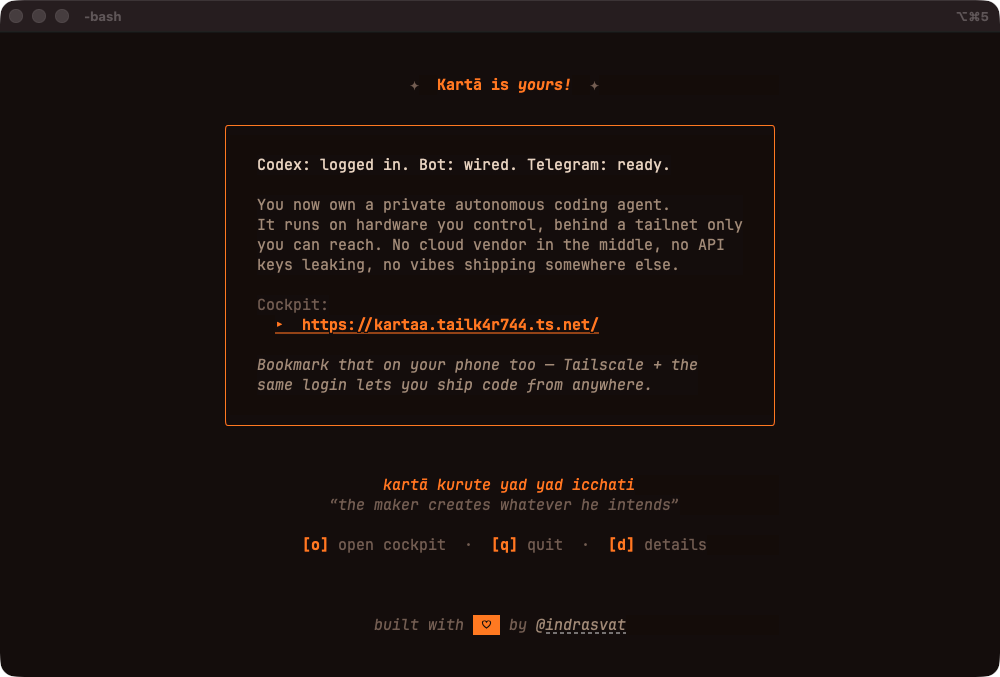
[o]
Open the cockpit
Tailnet HTTPS URL in your default browser. Bookmark it.
[?] opens per-action docs · [u] tears down (cost-aware)
After the cockpit is up
Make your daily-driver tools persistent
Open /settings/tools on your cockpit. Declare the CLIs
you reach for every session — gh-ghent, shux,
ripgrep, jq — and the agent-skills
playbooks you trust. Every new sandbox session installs them on first
boot, marker-cached so re-using the same container is a no-op. No more
re-installing gh-ghent in turn 1 of every PR run.
Skills come from the open agent-skills
ecosystem via npx skills add — paste a repo URL
(e.g. vercel-labs/agent-skills), pick a skill (or
install all), and codex sees the new SKILL.md in turn 1.
Full reference: docs/SANDBOX-TOOLS.md.
Staying current
One command upgrades everything
Run kartaa-install upgrade --host <your-host> from your Mac.
It SSHes in and reconciles the whole deployment in lockstep: cockpit
binary, systemd units, configs, the GitHub token wrapper, the pinned
Codex version, and the sandbox image. It health-checks each step and
rolls back on failure, so there's no hand-editing on the box and no
drift between hosts.
kartaa-install upgrade --host <your-host>                 # follow the latest release
kartaa-install upgrade --host <your-host> --target v0.30.0 # pin a recent release
kartaa-install upgrade --host <your-host> --dry-run        # preview, change nothing
kartaa-install upgrade --host <your-host> --rollback       # restore previous build
Upgrades pull from the published release manifest, so the host always
lands on a real tagged release. --target can pin any of the
last 3 published releases (older binaries are pruned from
the mirror); --rollback restores the host's own previous build
and is unaffected.
Troubleshooting
If something snags
"Connection refused" probing the cockpit
Tailscale isn't connected on your Mac. tailscale status to confirm.
"App name already taken" on [g]
GitHub App names are globally unique. Try a suffix —
kartaa-bot-personal, kartaa-bot-staging.
AWS install hangs at "Waiting for Tailscale join"
Reused hostname from a failed install. Paste a Tailscale API key (PlanInput's 4th field) and the installer auto-cleans the ghost. Keys: tailscale admin.
Cockpit URL won't load
HTTPS lives on the tailnet — Tailscale must be running on the device you're browsing from.
Start over
[u] on the Done screen tears down AWS. State at
~/.config/kartaa-install/runs/ — delete for a clean slate.
Heads up
What it costs
-
$0 → ~$60
AWS EC2 — 8 GB instance
A free-tier-eligible 8 GB type (m7i-flex.large). New accounts get $200 in starter credits, roughly 3 months free; ~$60/mo on-demand after.
-
~$15
Hetzner CPX32
4 vCPU AMD, 8 GB RAM, 160 GB NVMe. No free tier, no cold start.
-
$20
ChatGPT Plus
Required (Plus and up). Kartā uses your subscription's Codex quota; no API billing.
Not sure which AWS size? kartaa-install instance-types --provider aws --region <region>
lists the eligible 8 GB options for your region (the TUI's picker reads the same data).